Simple, Secure, Smart: Validating Atlas Passes
Train to validate Bhadala Atlas passes at the farebox — a quick, reliable way to confirm every rider is showing a genuine, active digital pass on their phone.
One Wallet for Every Metro Detroit Ride
Bhadala Atlas is a platform built to streamline fare payment and collection for commuters across Southeast Michigan. Pick the agency you operate for to see the matching validation guidance.
Riders Buy Passes Before They Board
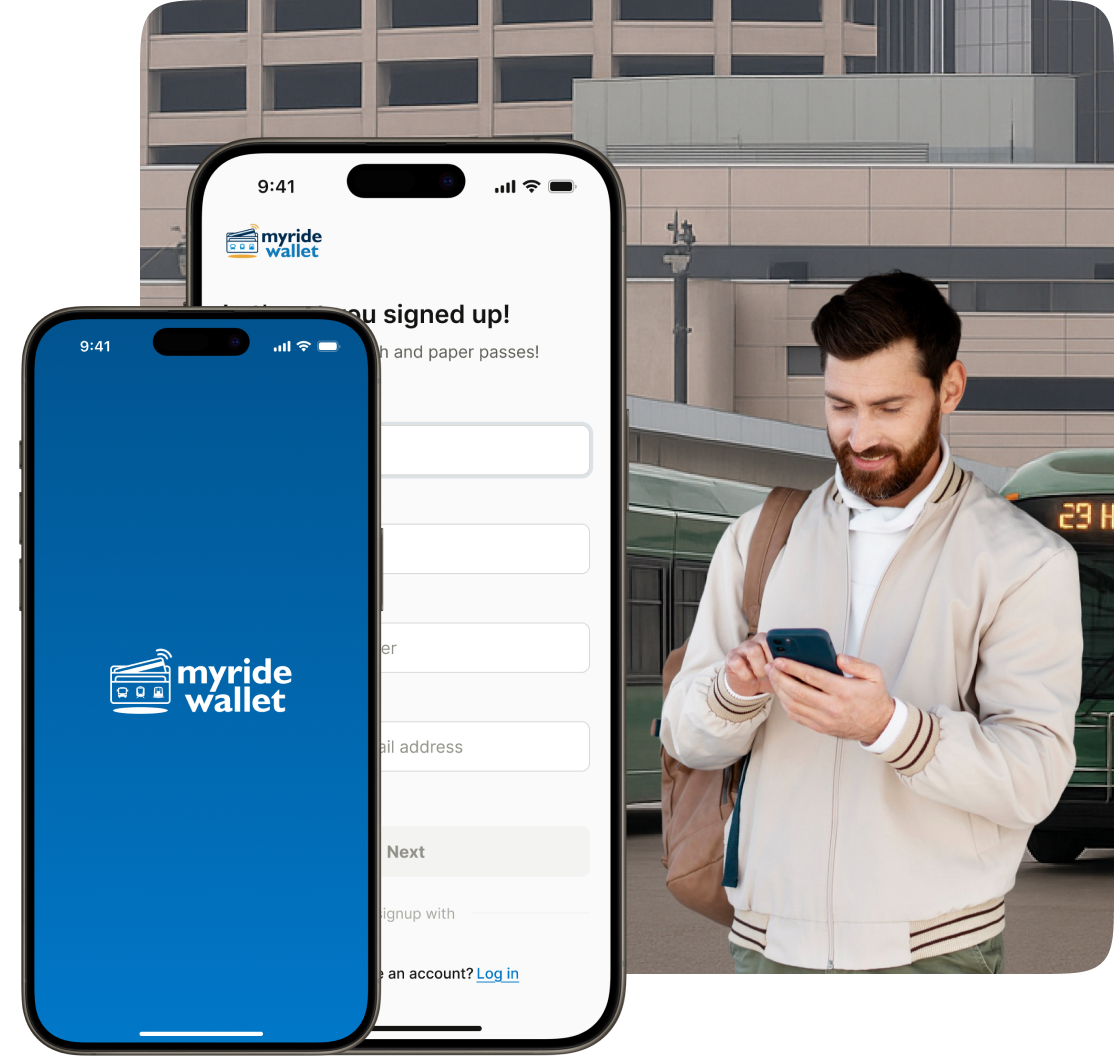
Riders download, sign up, and log in to the Bhadala Atlas app to access and purchase the passes available for their agency — so by the time they reach you, the fare is already paid.
Validate Every Pass Riders Present
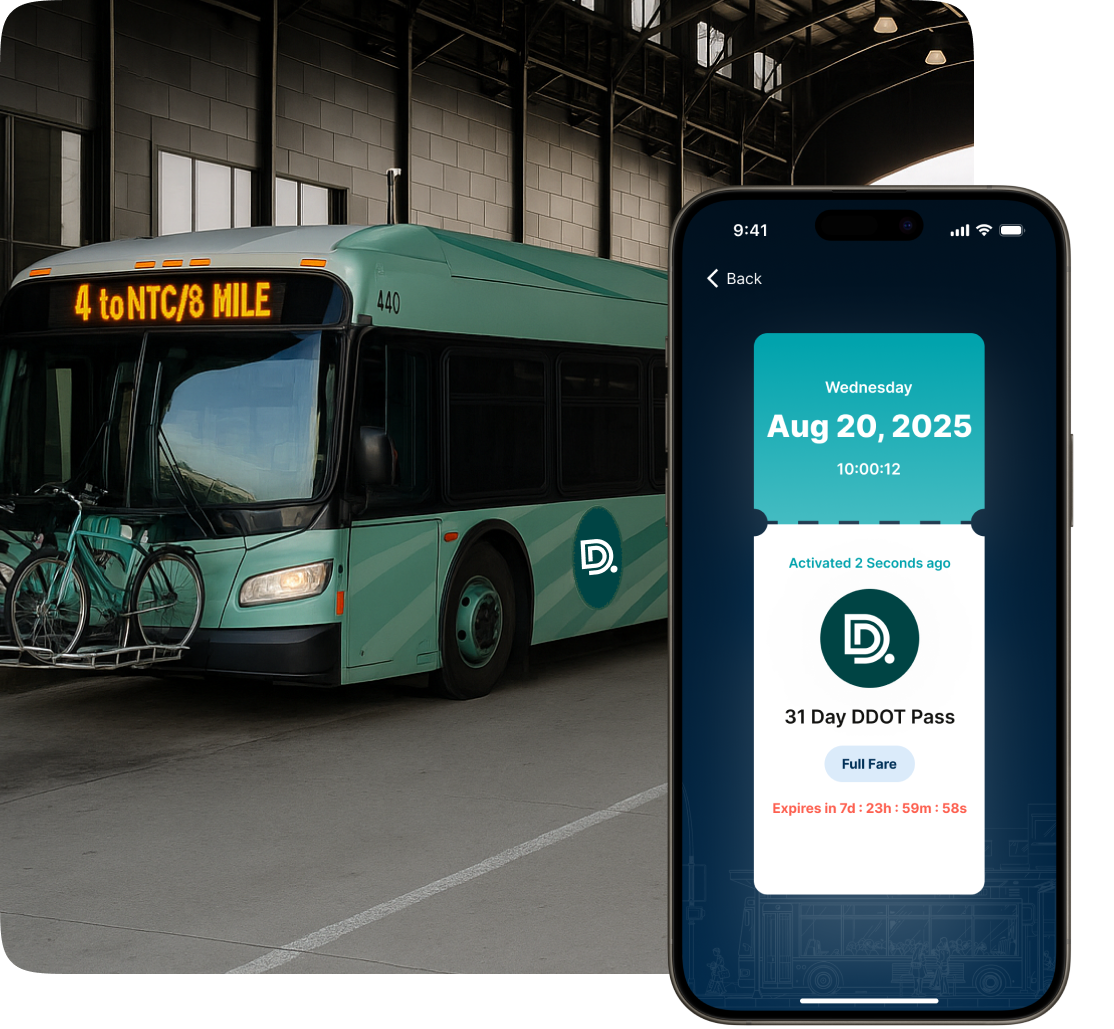
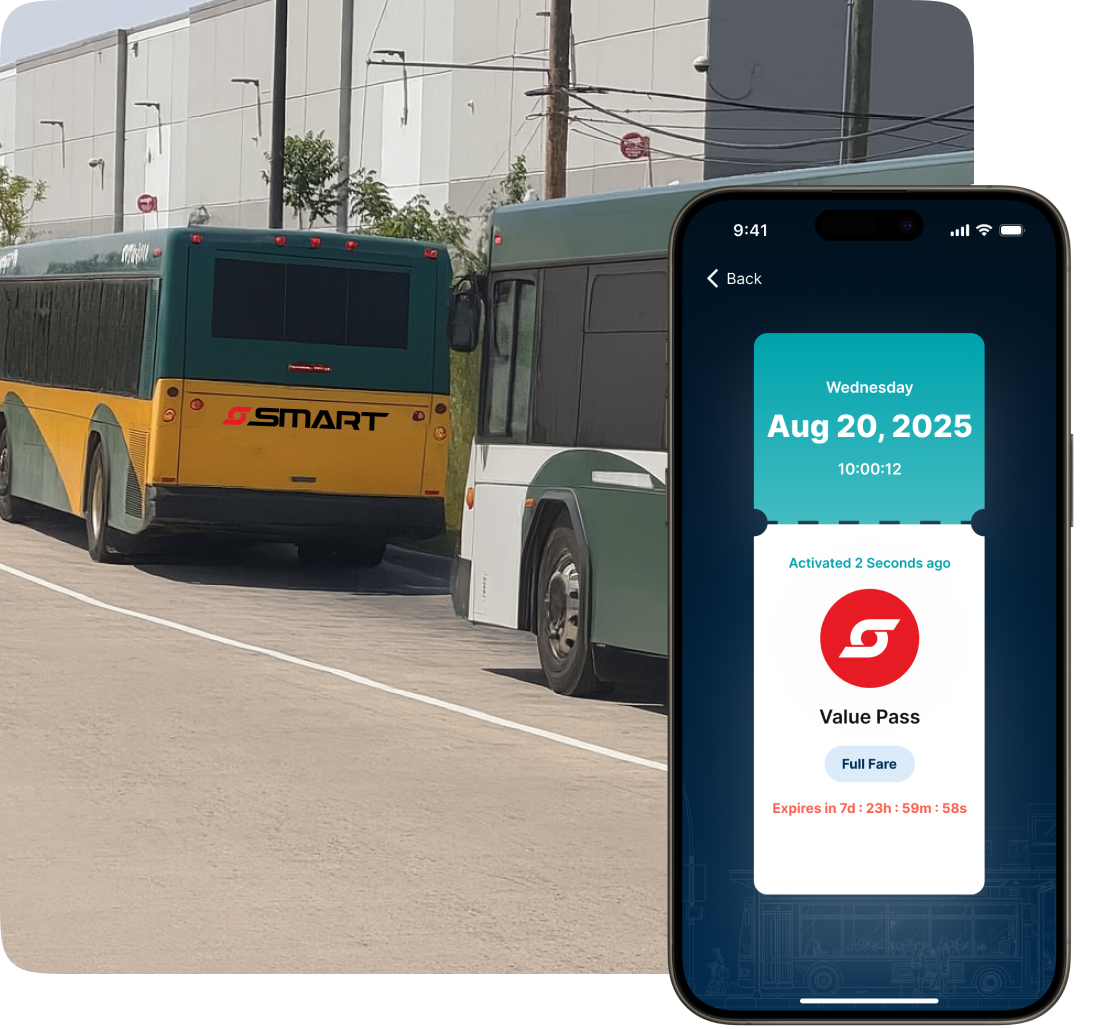
As an operator, please validate purchased passes on the Bhadala Atlas app that riders present to you before they board.
- Verify each rider's digital pass
- Confirm it's from the official Bhadala Atlas app
- Ensure the pass is currently active and valid
Verifying Bhadala Atlas Passes
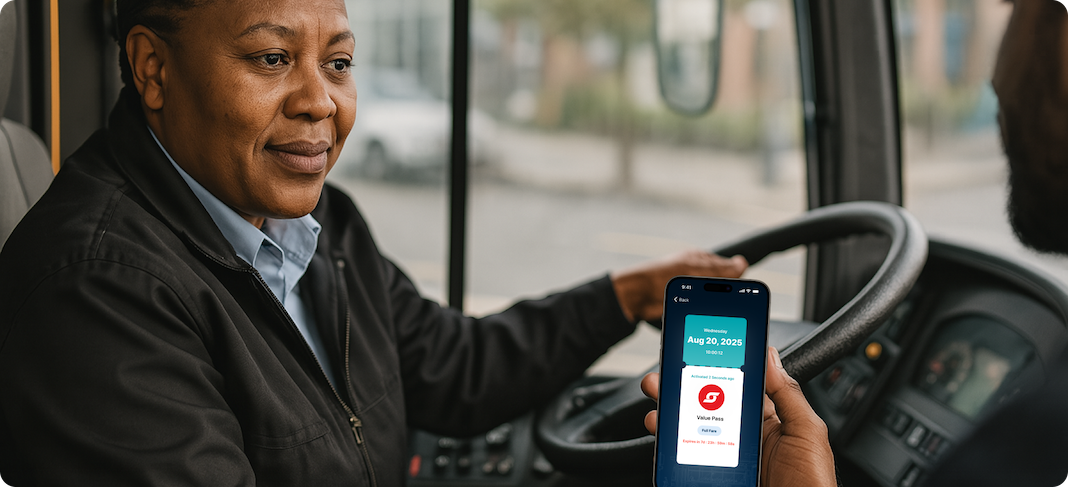
When a rider presents their pass on the Bhadala Atlas app while boarding, follow these steps to confirm it is genuine and active.

-
Look for the Activate Pass screen
Make sure the rider is showing you the pass from the official Bhadala Atlas app on their phone.
-
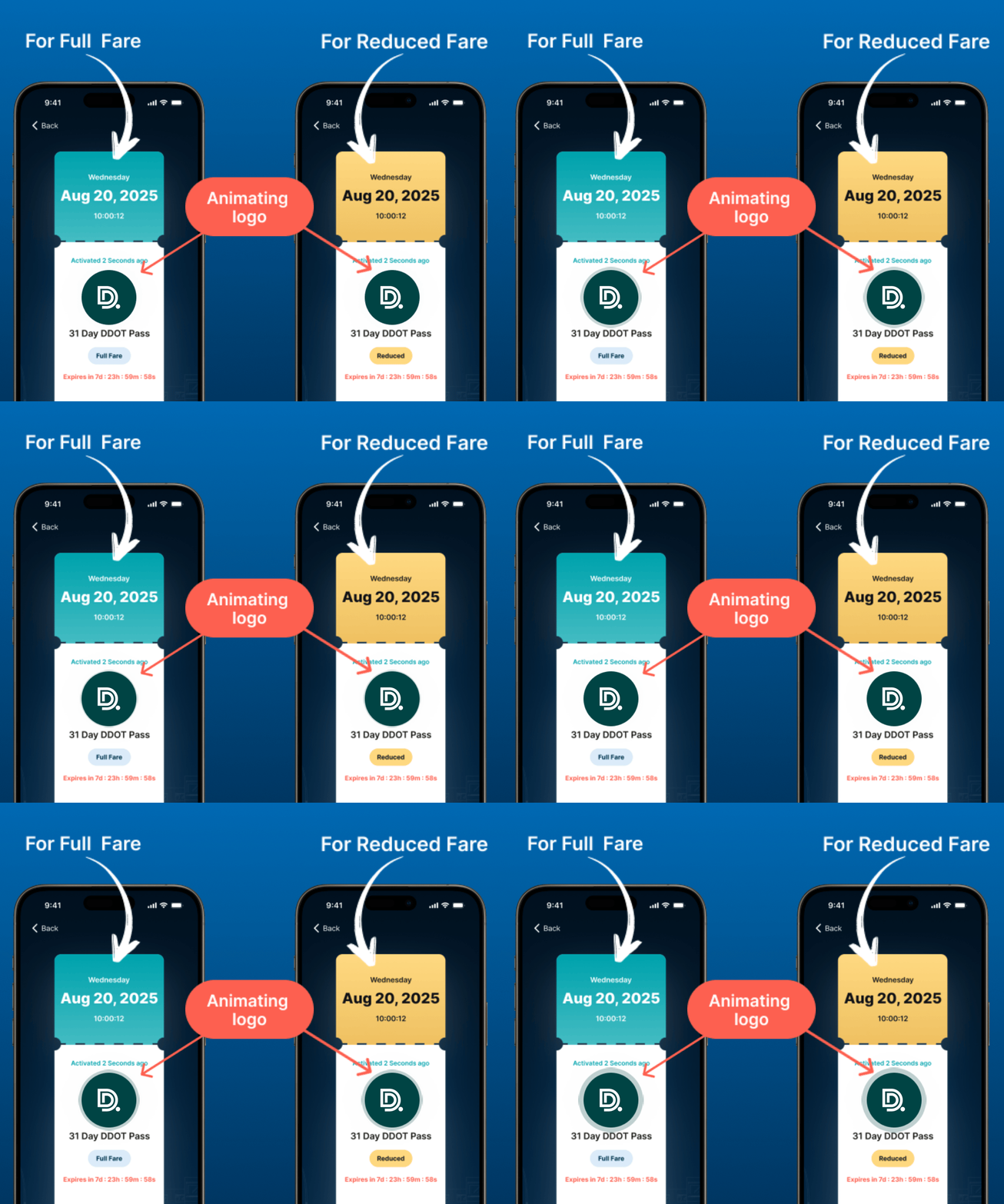
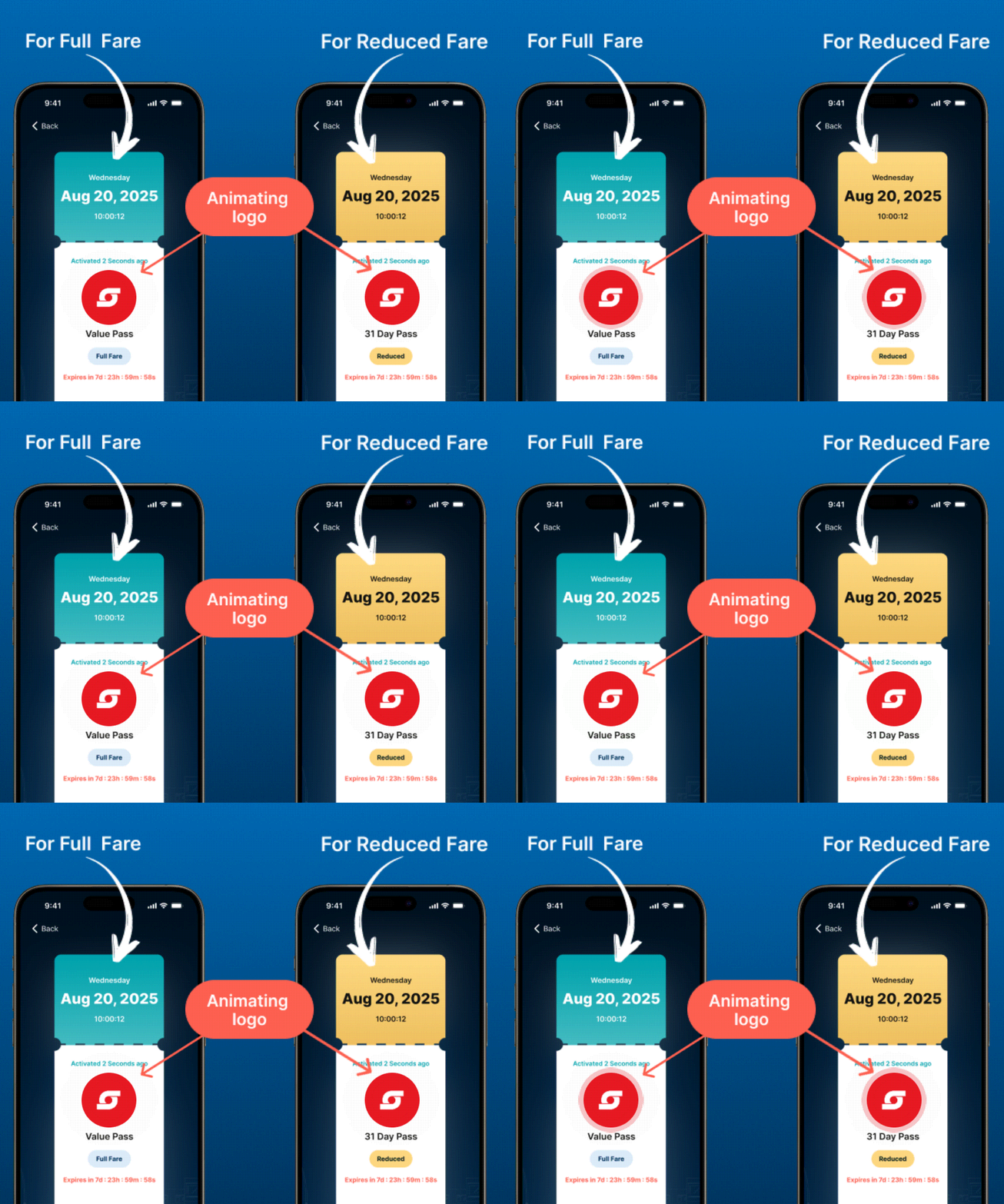
Check for the animated DDOTSMART logo
Atlas passes feature the DDOTSMART logo animated so it pulsates, which prevents fraudulent use of screenshots. Confirm the logo on the rider's pass is pulsating.
-
Confirm pass expiration
The Atlas screen clearly indicates in red when the pass will expire. Ensure the countdown timer is active.
-
Note the fare-type color coding
Check the color that indicates the rider's fare type:
🟢 Green — Full Fare 🟡 Yellow — Reduced Fare